
Blog

How to Switch Claude Code & Cowork from Anthropic to Amazon Bedrock with EU Data Residency

This guide explains how to migrate Claude Code and Cowork from Anthropic to Amazon Bedrock while enforcing EU data residency through AWS security guardrails.
September 21, 2026
Picture of Matina Lysikatou
Matina Lysikatou

Senior AWS Consultant

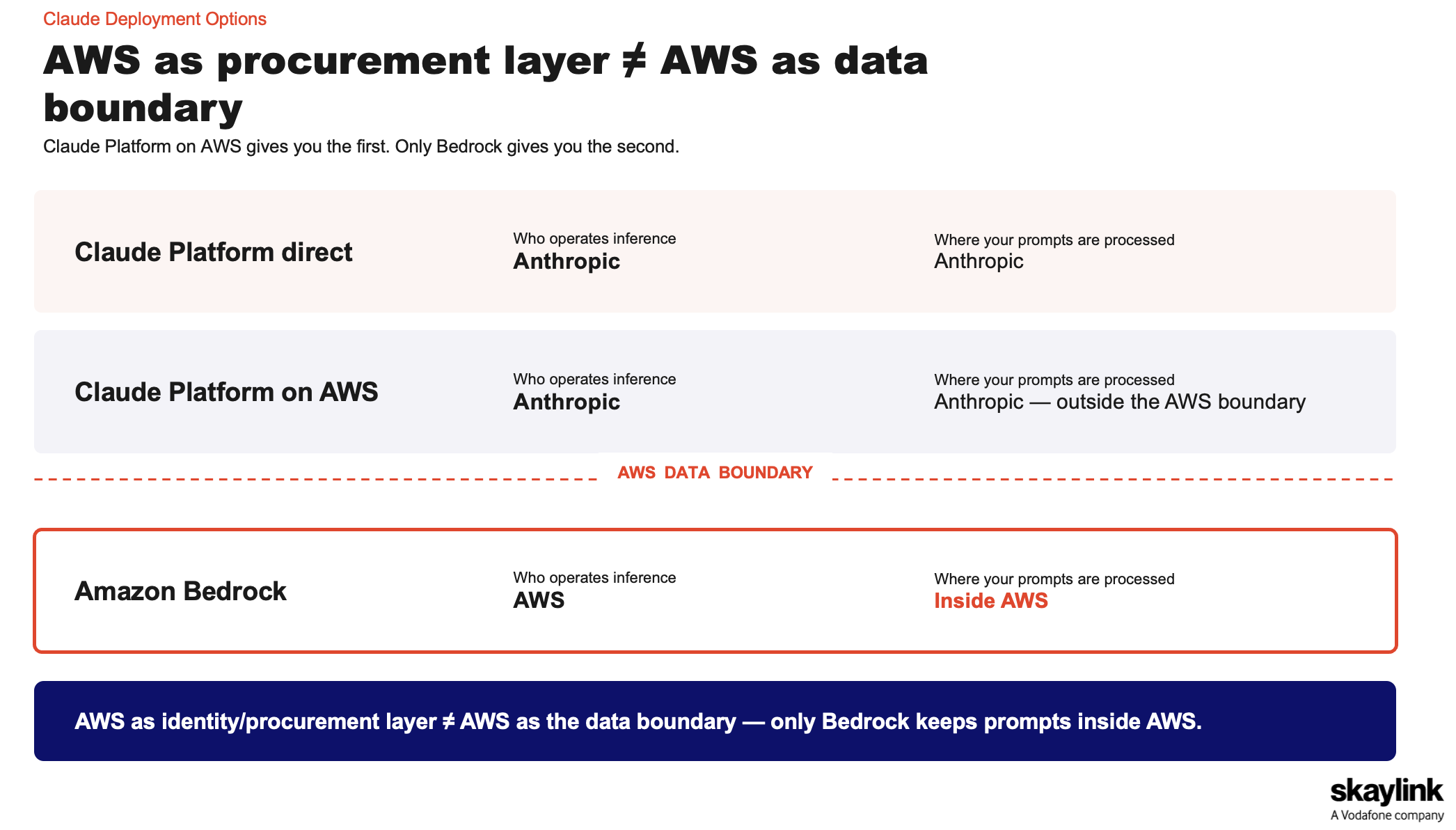
Switching from Anthropic to Bedrock for EU Data Residency

We have created this Github repository where we implemented and we tested a defense-in-depth layer for restricting the Data Boundary of Bedrock within the EU geographical region in countries which are eu-state members only (same can be applied also for restricting it further to only 1 region, like Frankfurt).

The strongest guardrail is the AWS Organizations Service Control Policy (SCP) named BedrockEUDataResidencyCompliance that (a) denies all bedrock:* calls unless made to an approved EU region, and (b) denies EU-residency-exempt model families (Claude Fable 5 / Mythos-class) unconditionally, since their retention/Anthropic-sharing requirement breaks EU residency regardless of region, which we have had our managed services team create it and attach it to a target account (it could also be attached to multiple accounts or an OU). See our ticket example requesting this SCP: https://serviceportal.skaylink.com/support/tickets/174025

As the second security layer in the defense-in-depth model, we created and attached a best-effort account-level IAM policy named BedrockEUOnlyAccess when attach_account_level_guardrail = true. It mirrors both statements of BedrockEUDataResidencyCompliance (region restriction + EU-residency-exempt model family deny) as an IAM policy, not an SCP.

The org-level SCP remains the primary enforcement control, while the IAM policy adds a local deny rule scoped to the IAM user behind for example the Long-Term Bedrock API Key. This ensures that the Bedrock API key inherits the same EU-only, exempt-model-denied restriction even if the org-wide SCP is not yet live or is being rolled out gradually. See example in https://github.com/skaylink/claude-bedrock-api-keys-management/blob/main/terraform/bedrock_access.tf

(look for the policies BedrockApprovedModelsEU andBedrockEUOnlyAccess)

Claude Code - Switch from Anthropic to Bedrock

Switch into using a Long-Term Bedrock API Key

This is not the preferred method to use. You can use it only in a PoC/Discovery phase and then you are highly requested to switch. Such long-term keys are valid indefinitely – production use should favour short-term keys instead.

  1. Install VS Code, then the Claude Code extension: Cmd+Shift+X / Ctrl+Shift+X → search “Claude Code” (publisher: Anthropic) → Install.

  2. Open Settings (Cmd+,/Ctrl+,), search “Claude Code login”, check Disable Login Prompt.

  3. Get the API key from your AWS Account manager — a text file with a single value starting with ABSK.... Treat it like a password: don’t share it, don’t paste it anywhere public. (e.g. Keep it in your Bitwarden vault)

  4. Add the Bedrock connection to ~/.claude/settings.json (create the file if it doesn’t exist) (make sure you replace <your API key> with the real key you safely stored in the previous step:

				
					{
  "env": {
    "CLAUDE_CODE_USE_BEDROCK": "1",
    "AWS_REGION": "eu-central-1",
    "AWS_BEARER_TOKEN_BEDROCK": "<your API key>",
    "ANTHROPIC_DEFAULT_SONNET_MODEL": "eu.anthropic.claude-sonnet-5",
    "ANTHROPIC_DEFAULT_OPUS_MODEL": "eu.anthropic.claude-opus-5",
    "ANTHROPIC_DEFAULT_HAIKU_MODEL": "eu.anthropic.claude-haiku-4-5-20251001-v1:0"
  }
}


Optional: If you need to use any skills, you need to download that skills folder and place it under ~/.claude/skills/. Example command, run from a terminal opened in the downloaded folder:

				
					mkdir -p ~/.claude/skills && cp -R "your downloaded skill folder" ~/.claude/skills/


6. Reopen VS Code if it was already running, so it picks up the new skill, and click the ✱ Spark icon at the top-right of an open file — the chat panel opens, sign-in is skipped and you are ready to go.

Switch into using your AWS SSO Profile of an AWS Account

  1. Log in to the AWS SSO session (choose a target profile, where you are allowed to use Bedrock – this here is just an example): aws sso login --profile Proalpha-PoC-OrderBuilder-Agent

  2. In Visual Studio Code (where you have your Claude Code extension), Open Settings (Cmd+,/Ctrl+,), search “Claude Code login”, check Disable Login Prompt — this stops the extension prompting for an Anthropic sign-in.

  3. Add the Bedrock connection to ~/.claude/settings.json (create it if it doesn’t exist): (replace the AWS_PROFILE with yours and also the models if necessary.

				
					{
  "env": {
    "CLAUDE_CODE_USE_BEDROCK": "1",
    "AWS_PROFILE": "Proalpha-PoC-OrderBuilder-Agent",
    "AWS_REGION": "eu-central-1",
    "ANTHROPIC_DEFAULT_SONNET_MODEL": "eu.anthropic.claude-sonnet-5",
    "ANTHROPIC_DEFAULT_OPUS_MODEL": "eu.anthropic.claude-opus-5",
    "ANTHROPIC_DEFAULT_HAIKU_MODEL": "eu.anthropic.claude-haiku-4-5-20251001-v1:0"
  }
}


4. This uses AWS_PROFILE against your existing SSO session rather than a static AWS_BEARER_TOKEN_BEDROCK key — no long-lived credential to create, hand off, or rotate.

5. Reload the window (Command Palette → “Developer: Reload Window”) so the extension picks up the new settings.

6. Run /status in the chat panel to confirm the provider now shows Amazon Bedrock and the region is eu-central-1.

Switch Back to Your Personal Anthropic License

  1. Open Settings (Cmd+,/Ctrl+,), search “Claude Code login”, uncheck Disable Login Prompt.

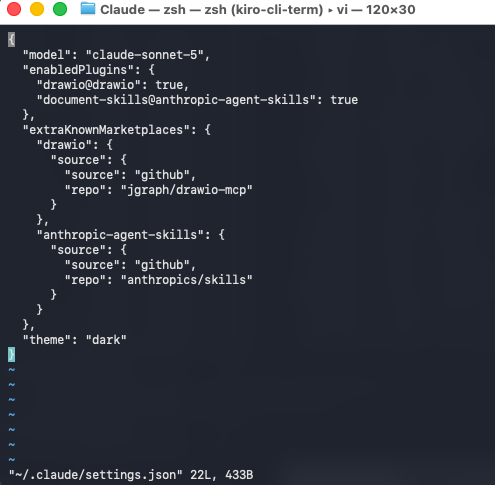
  2. Edit the file ~/.claude/settings.json by removing the whole “env“ block you added previously. E.g. you should be left with something like this:

Claude Cowork - Switch from Anthropic to Bedrock

Switch into using a Long-Term Bedrock API Key

If you have not installed Claude Cowork (Claude’s desktop app) yet and you are on a Mac, open up a Terminal and issue following command to install it:

  1. brew install –cask claude

    1. (if you do not have brew installed):

				
					/bin/bash -c "$(curl -fsSL https://raw.githubusercontent.com/Homebrew/install/HEAD/install.sh)"


Open Claude Cowork (or Desktop) app (you do not need to login)
If you do not see the Developer menu, first enable it via:

Help → Troubleshooting → Enable Developer Mode

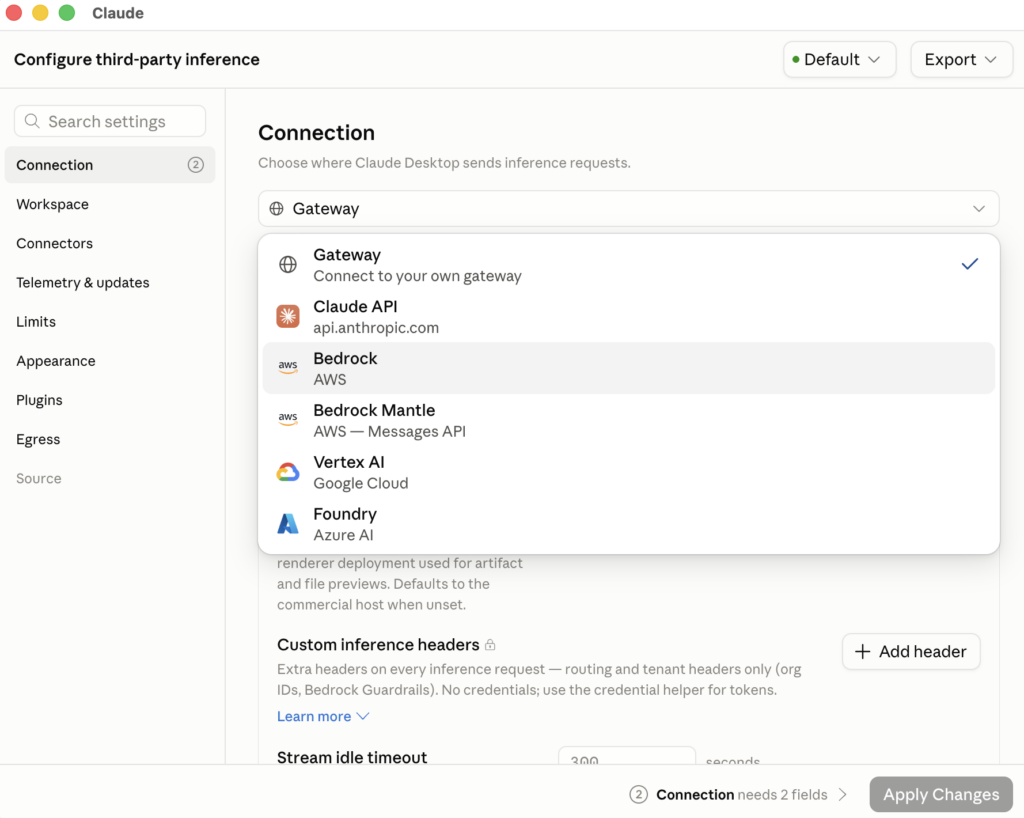
4. Open the Developer menu → Configure Third-Party Inference…

5. In the Connection section, set Inference provider to Bedrock.
6. Complete the Bedrock credentials section:
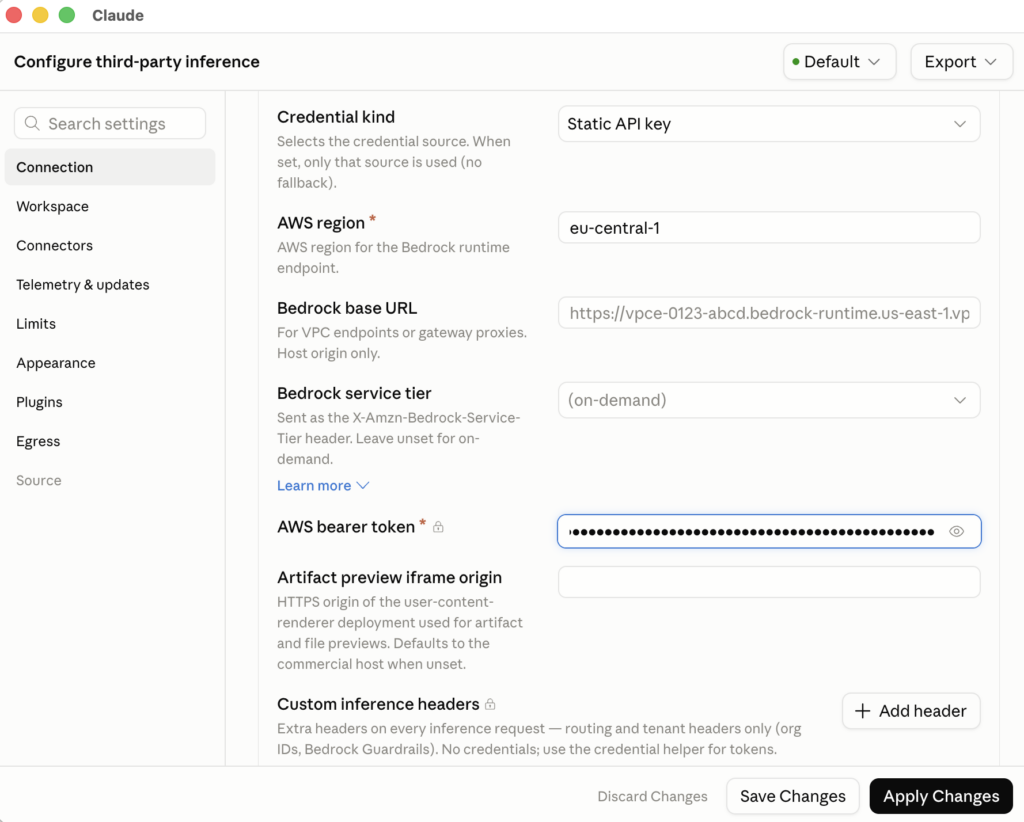
a) AWS region: Enter the AWS region where your Bedrock model access is enabled (for example, eu-central-1 or the region where your test key was created).

b) AWS bearer token: Paste your long-term Bedrock API key. This corresponds to the inferenceBedrockBearerToken field. (You should have received it in a txt file)

c) Leave all other fields empty:

      • AWS profile name

      • AWS config directory

      • AWS SSO fields

      • These fields are used by the alternative Bedrock authentication methods (named AWS profiles and in-app AWS sign-in). Configuring multiple credential sources simultaneously can create ambiguity about which one Claude Desktop actually uses.

7. Under Models, please do NOT leave the model list empty, otherwise you will be confronted with such an error:
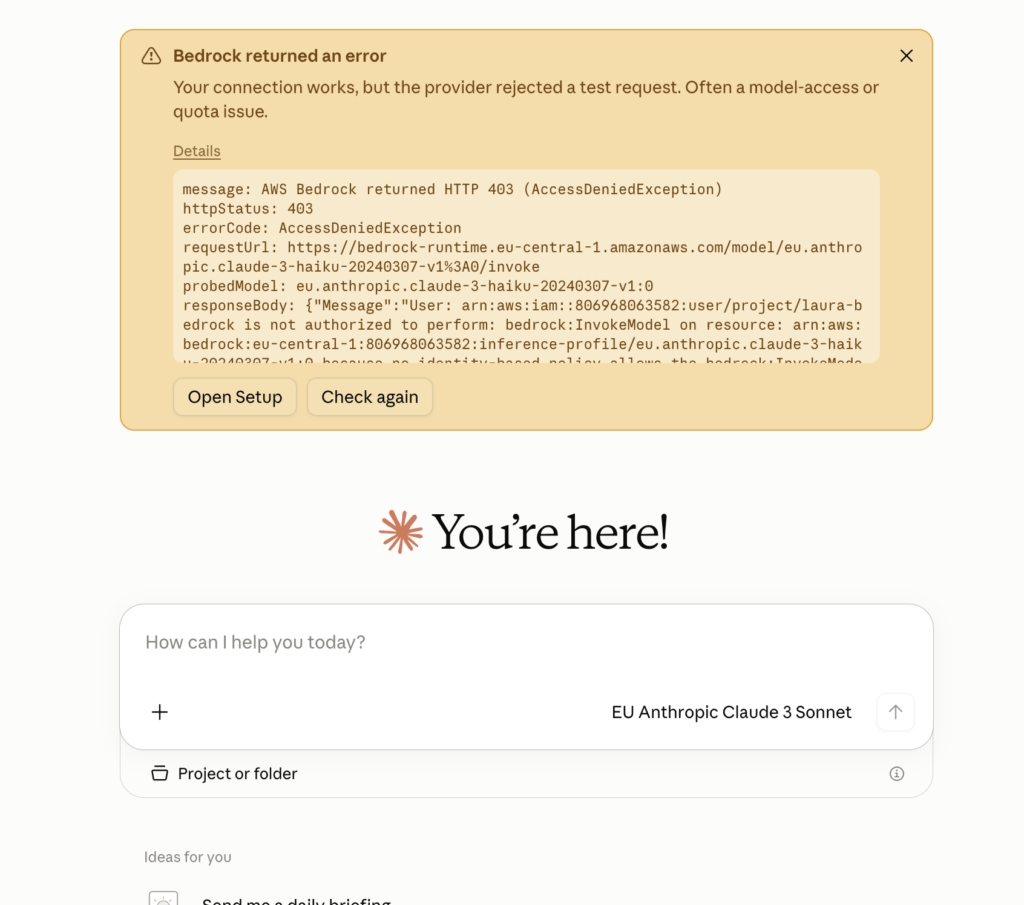
consult your attached IAM Policy E.g. BedrockApprovedModelsEU in bedrock_access.tf which grants bedrock:InvokeModel for explicit Model Families. At the time of this writing the Policy allowed:

  • eu.anthropic.claude-sonnet-5

  • eu.anthropic.claude-opus-5

  • eu.anthropic.claude-haiku-4-5-20251001-v1:0

So, you need under Model list to click on Add Model and use as Model ID one of your policy:
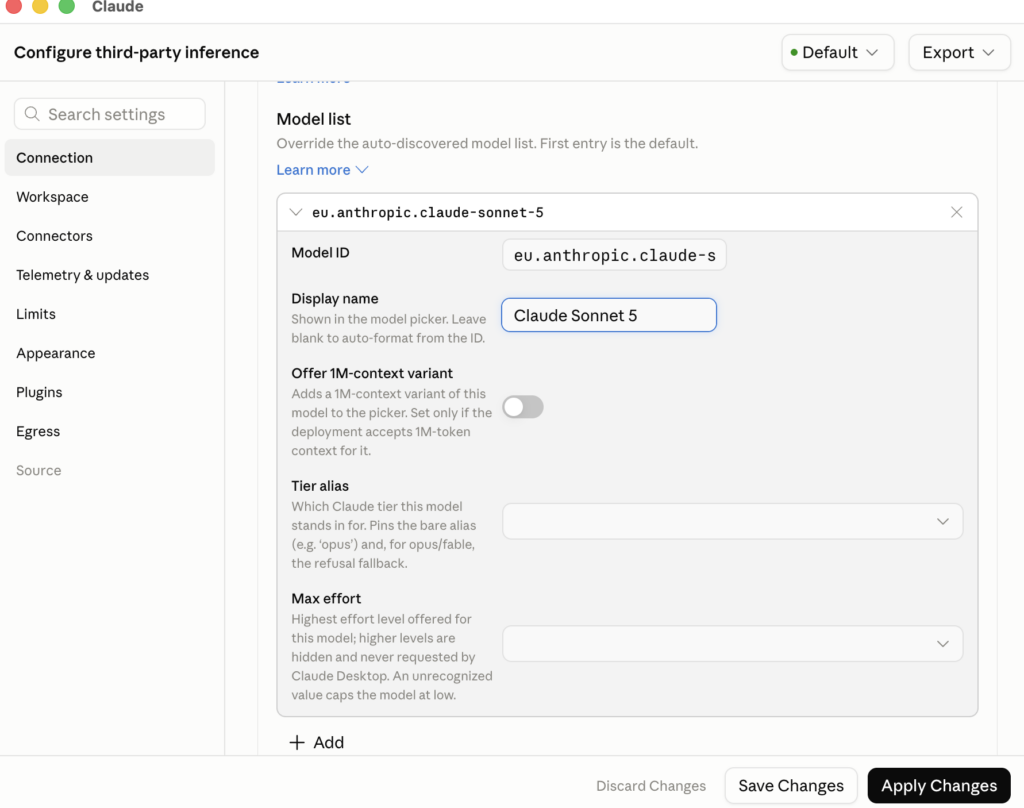
(you can add several, e.g. all the models in your policy)

  1. Click Apply Changes & Save (it will need to restart)

  2. After the restart post clicking on “Apply Changes“ button, you should be able to see:
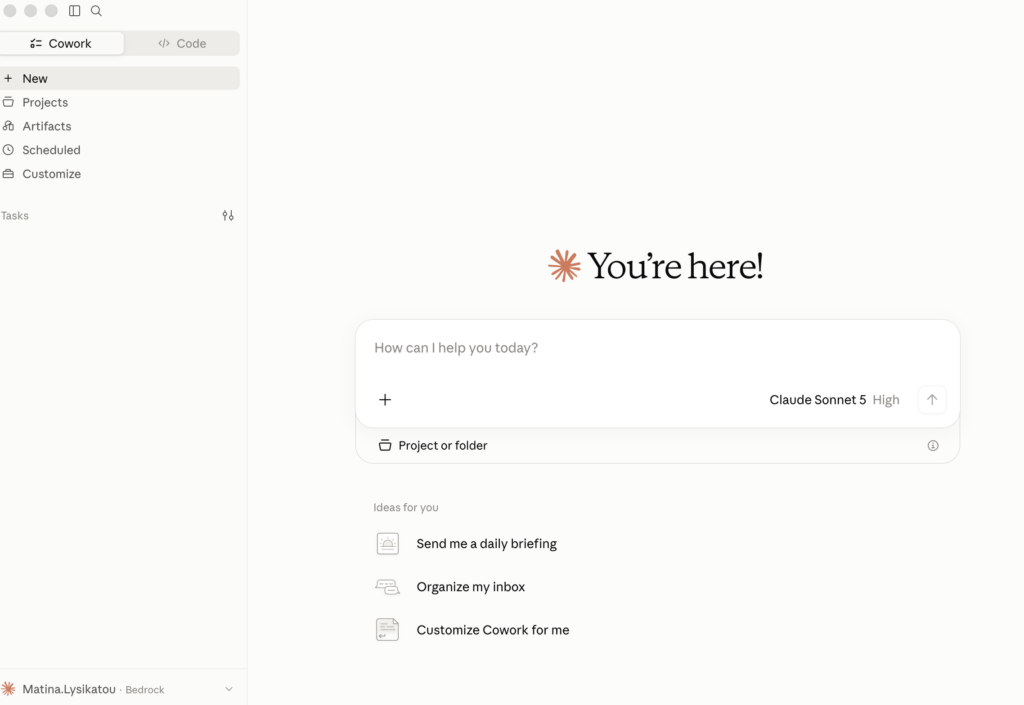
If you need to troubleshoot:

  1. Help → Troubleshooting → Generate Diagnostic Report

  2. Open:

    provider-status.txt

    This file will confirm whether Claude Desktop successfully validated and is actively using the Bedrock provider. This is the authoritative verification method recommended in Anthropic’s troubleshooting guidance.


If you need to import a skill:

  1. Download the shared yourskillexample skill folder and compact it all into a .zip file.

  2. Open your Claude Cowork and on the left handsome menu click on Customize
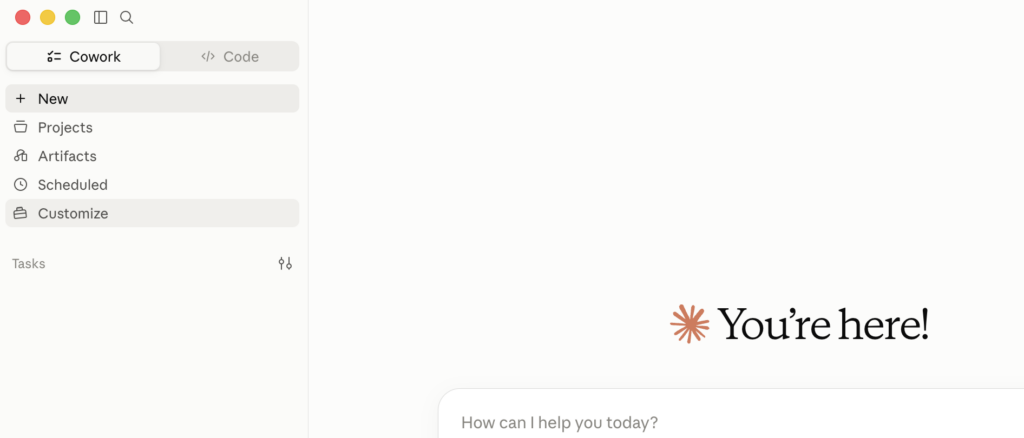
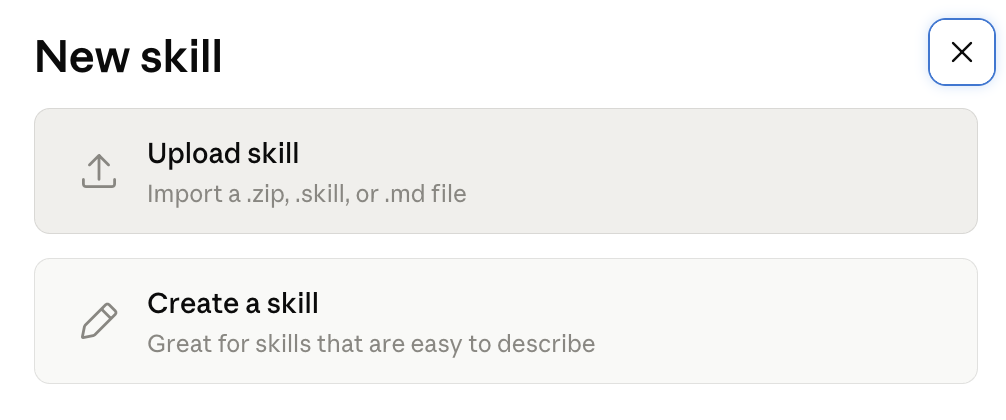
3. Then you click on “Add Skill“ in the interface that opens:
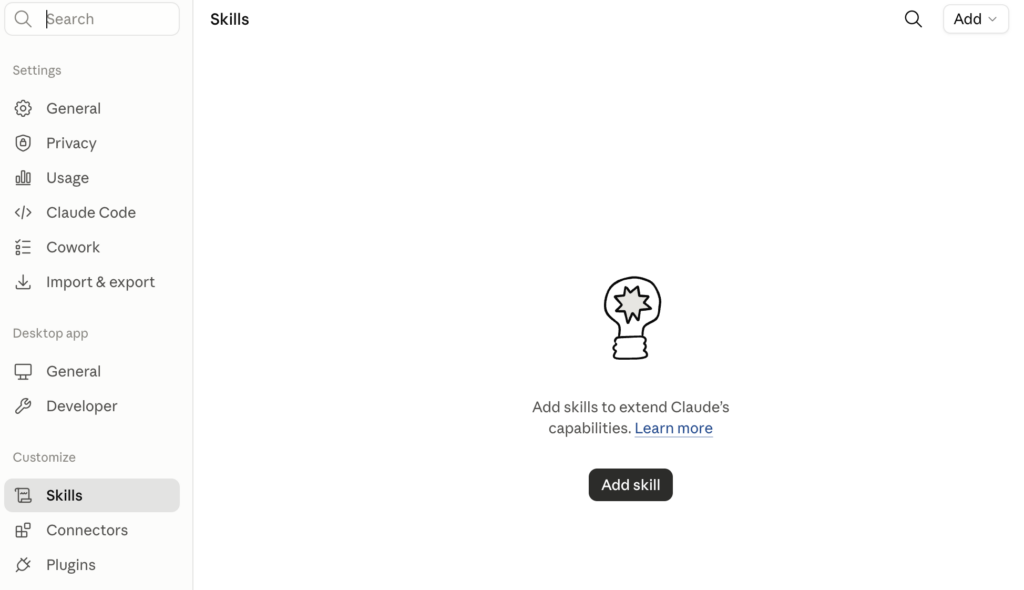
4. Then select “Upload a skill“
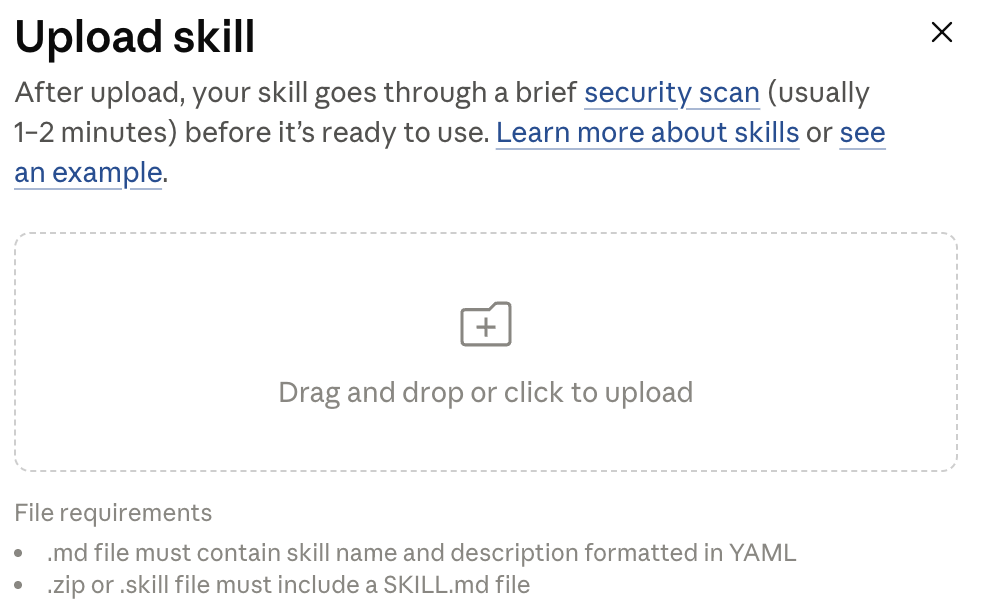
5. Drag and drop your zipped skill folder there:
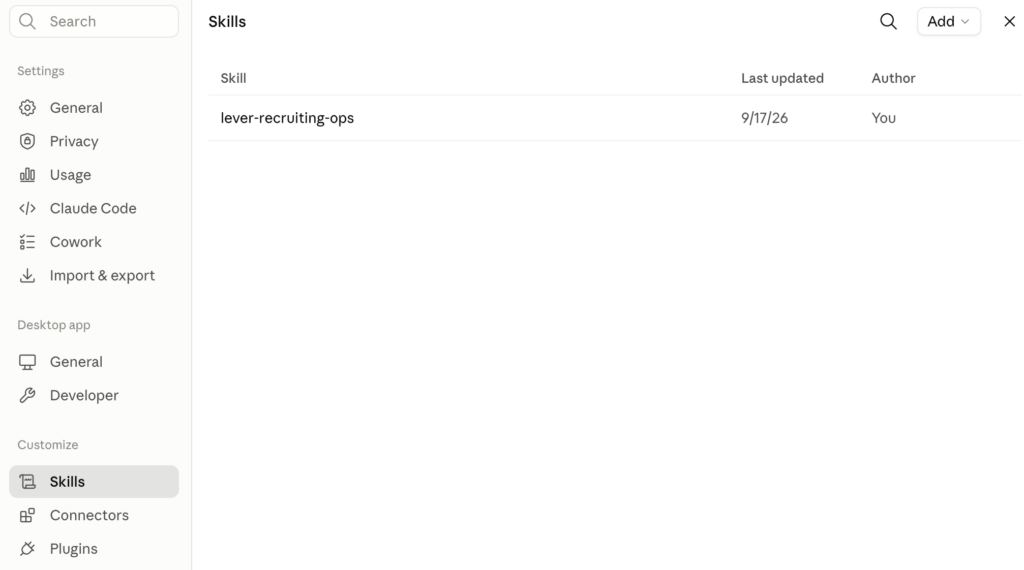
it will appear like this and you may close that window:
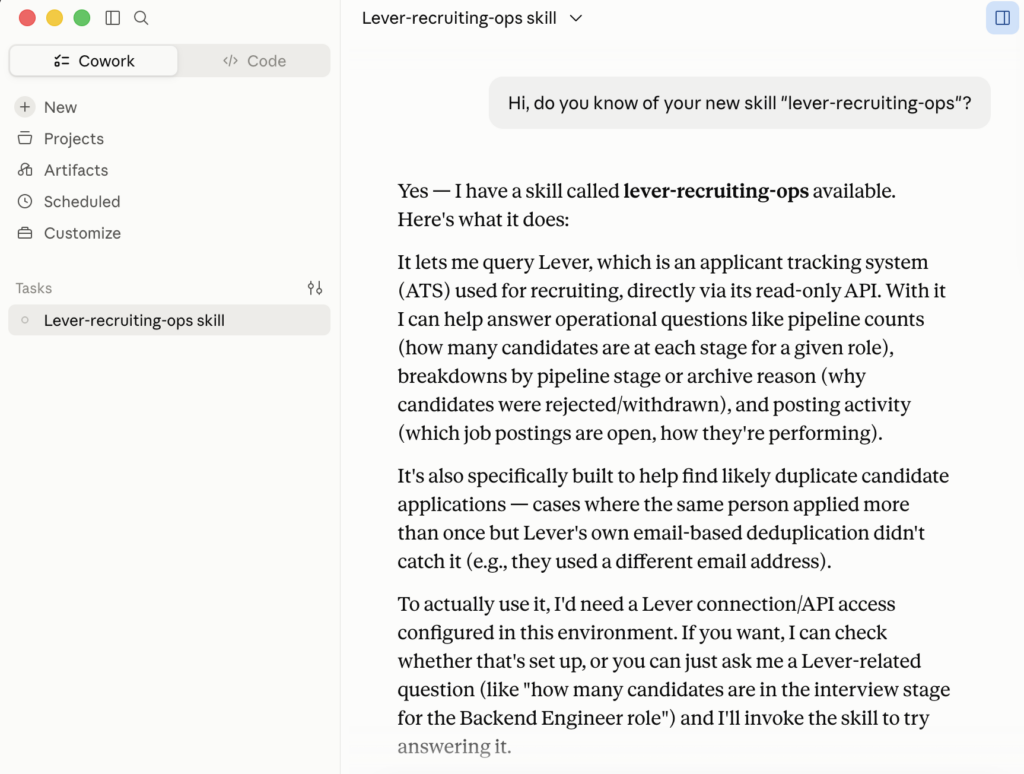
6. You do not need to restart Cowork, you can go ahead and ask if it knows of that skill and start working:
Switch into an AI Landing Zone (LiteLLM)

Use this if the agentic solution design accesses Bedrock through LiteLLM, allowing:

  • Shared IAM role usage

  • Budget controls and spending caps

  • Per-user attribution

  • MCP tool access governance

By contrast, a long-term Bedrock API key configured directly in Claude Desktop bypasses those governance mechanisms because the credential is stored and used locally.

Therefore, this test is useful to verify that Claude Cowork can natively connect to Bedrock, but it should be viewed separately from the question:

“Is this the connectivity model that the PoC is designed to use?”

The answer to that second question remains no. The PoC architecture is based on Bedrock access through LiteLLM rather than through a locally configured personal Bedrock API key.

Follow the same instructions of “Switch into using a Long-Term Bedrock API Key”until Step #4 where:

  1. Set Inference providerGateway (not Bedrock) — option in the same dropdown

  2. Gateway base URL: LiteLLM’s ALB endpoint (the same public HTTPS address, not an AWS region)

  3. Gateway API key: the user’s LiteLLM virtual key (fabric-restricted or fabric-unrestricted, per this project’s design), not a Bedrock bearer token

  4. Gateway auth scheme: Bearer (the default)

  5. No AWS region field at all in this mode — LiteLLM is the one deciding the Bedrock target underneath; Cowork doesn’t need to know the region, same as it doesn’t need to know Bedrock exists at all

Switch Back to Your Personal Anthropic License

To revert to your original setup:

  1. Open Developer → Configure Third-Party Inference…

  2. Change Inference provider back to the default Anthropic configuration.

This change is applied immediately and does not require a restart.

Case Stories